
The Realix Audio Box is not a physical device, but a software application that behaves, from a connectivity perspective, exactly like a Realix hardware box such as the SBUS Box. It provides multi-channel audio support (up to 20 channels), allowing you to deliver audio to every space of your escape room using a single audio device.
- Provide audio throughout an entire escape room from a single computer.
- Up to 18 audio channels possible via ASIO with the appropriate hardware.
- Flexible routing of players to audio outputs.

How the Audio Box Works
- The Box application, which runs on a Windows PC can connect to the regular default windows audio device but limited to 2 channels. The power of the Audio Box is only fully used when using an audio device that comes with native ASIO drivers bypassing windows audio system completely. Those devices offer multiple channels with low latency playback capabilities. See below examples of such devices.
ESI Gigaport eX, 8-channel output device available with ASIO drivers
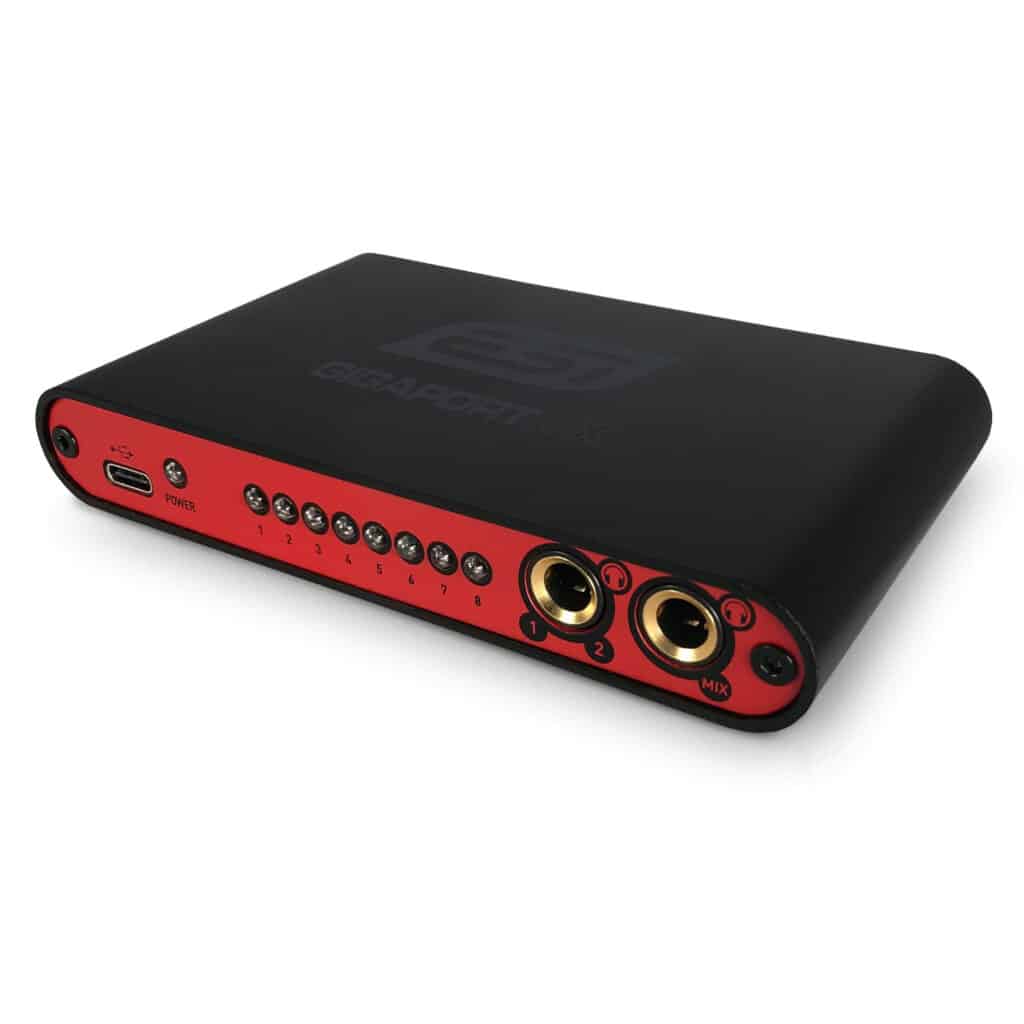
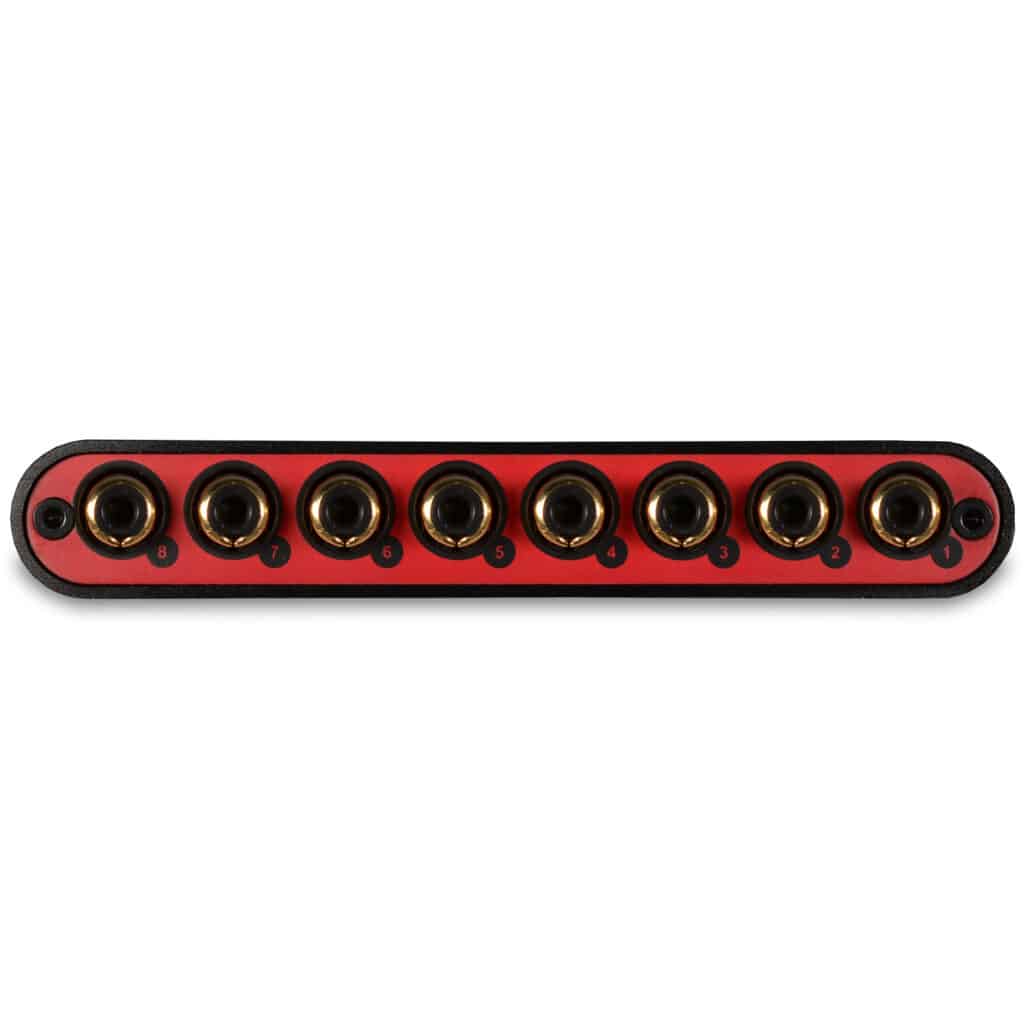
Behringer UMC1820, 10-channel physical output extendable to 18-channel physical outputs


- Auto-discoverable, meaning it is automatically detected and configured in the Designer when connected.
- In the Designer, the user can define as many audio players as needed and define over which audio device channels it plays. Audio players can play in paralellel
- Also a microphone (over standard windows drivers) can be added to play over the audio players
Configuring the device
Download the AudioBox software from the download page. Install and run it on the computer you want to use for audio playback. If you are using an ASIO device (highly recommended), make sure the ASIO drivers are installed. These should be the native drivers provided by the device manufacturer
Open the ERC Designer and your project, then choose to add a device. If AudioBox is running, you can create the device in your project as shown below. When creating the device, select “Use ASIO …” to enable full capabilities..
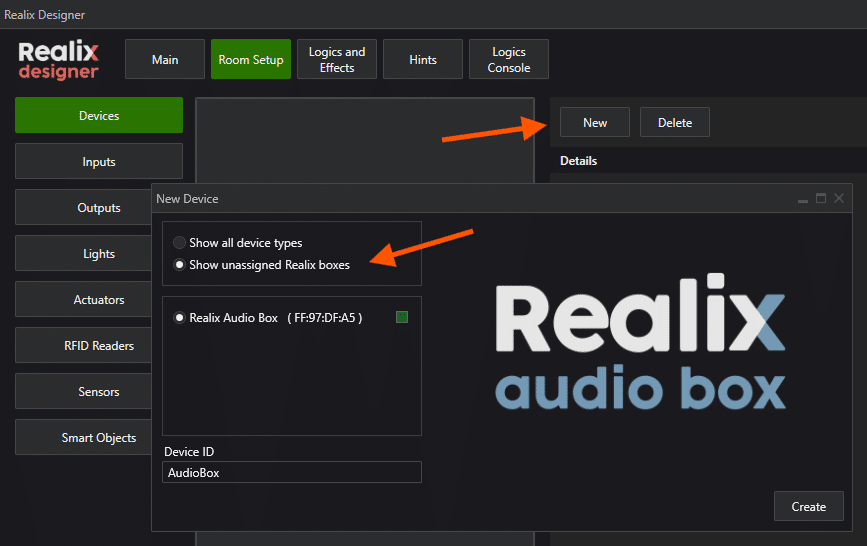
Important: Make sure to press Synchronize so the system can find the driver.

You are now ready to start adding the AudioPlayer channels. Note that the term “channel” can be a bit confusing. In Realix terminology, a channel can be like an output or input, a light, or an audio player defined on a device. In audio systems, however, a multichannel device often also refers to its outputs as channels. To avoid confusion, we will refer to those as “Audio outputs.”
In the image below, an AudioPlayer channel has been added to the Audio Box device. At the bottom right, you can see the graphic representing the Audio Box’s output routing. Here, you can assign which physical outputs of the device will be used for playback. The “Ch” column displays the available audio outputs of the device. Each output can be configured as follows:
- 0 — The output is not used by this AudioPlayer.
- M — If the audio file is a stereo source, it will be mixed down and played back as mono on this output.
- L — The left channel of the audio file will be played on this output.
- R — The right channel of the audio file will be played on this output.
This allows flexible routing of mono or stereo audio to any output of the Audio Box.

Because you can define your own AudioPlayer channels, you can create separate players for music and sound effects. This allows both to play in parallel, while each AudioPlayer can be mapped to a specific area or room within your escape room.
This way, background music and localized effects can be controlled independently and routed exactly where they are needed.
To use an AudioPlayer channel, you only need to assign an object to it. Once assigned, the AudioPlayer can be used in your puzzles and effect sequences.
Using a microphone
You can also create an AudioInput as a channel. This is primarily intended for use with a microphone.
The microphone uses standard Windows audio input drivers, not ASIO. After creating the AudioInput channel, you can select which audio input to use from a dropdown list.
Activation of the microphone is handled through an effect sequence. There, you define which AudioPlayer should be used for playback of the microphone signal.
