
Logic Controls are higher-level interactive elements that include Locks, Switches, and Operations. These can be found in the Designer in the Logic and Effects workspace. While they share similarities with Puzzles, Actions, and Experiences, they are not part of the Puzzle Schema. Like tasks within the schema, these Logic Controls offer the game host interactive elements in the Game Host and Prepper applications, allowing for the activation or management of various actions and sequences during gameplay.
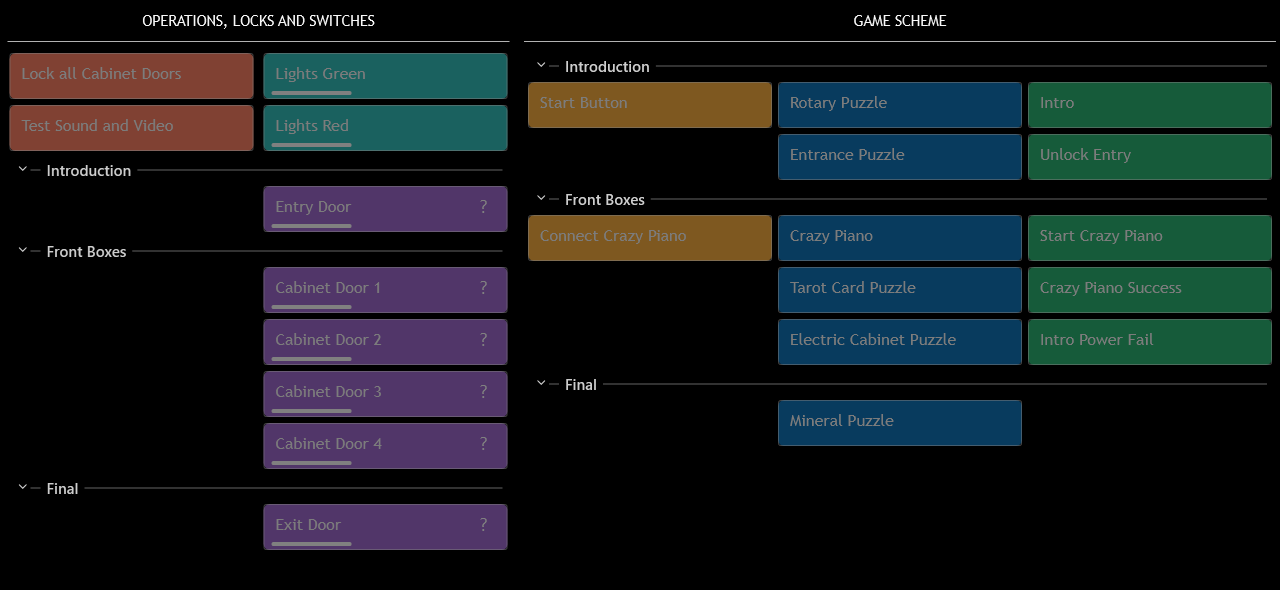
Game Host groups Operations, Locks and Switches according to the room’s presentation structure.
To set up locks, you can easily activate them while preparing the room for the next group of players. Operations can be configured to test effects or initiate effects or start a script that you want to run asynchronously with the game flow. Additionally, operations can be linked to an absolute game time or elapsed maximum game time. To prevent accidental activation of test effects, they can be hidden while the game is running. These topics will be covered in more detail in the following sections.
Lock Control
Choose the Lock Type before assigning its channels. A physical lock uses an Output to drive the mechanism. A Virtual Lock has no physical Output; its lock and unlock events can run effect sequences. The type also determines what feedback means.
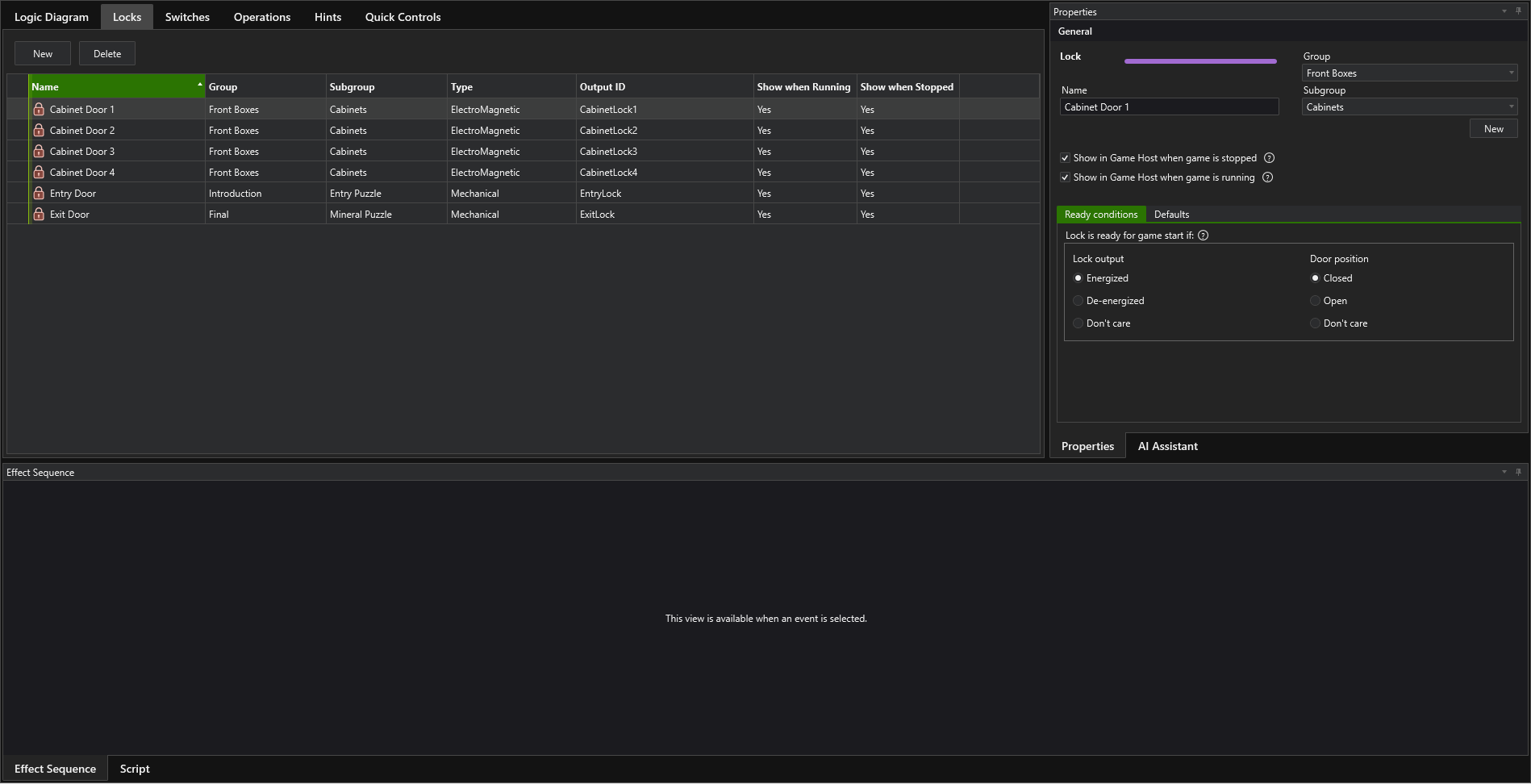
| Type | I/O and feedback | Ready conditions | Start and reset defaults |
|---|---|---|---|
| Magnetic Lock | Assign the lock Output. An optional Door Closed Input reports the door position: 0 is open; a non-zero value is closed. | Lock output: Energized, De-energized or Don’t care. With an assigned input, also select Door position: Closed, Open or Don’t care. All selected conditions must match. | Locked, Unlocked or Unchanged for start and reset. |
| Mechanical Lock with Pulse Release | Assign the release Output and pulse duration. An optional Door Locked Input reports lock feedback, rather than just door position. | Lock state: Locked, Unlocked or Don’t care. | Locked, Unlocked or Unchanged. A release pulse can unlock the mechanism; physically closing or latching it remains part of room preparation. |
| Virtual Lock | No lock Output is required. Lock/unlock events run the configured effects. An optional Door Closed Input can still monitor a physical door. | Logical lock output: Energized, De-energized or Don’t care; separate Door position condition when an input is assigned. | Locked, Unlocked or Unchanged set the logical state and its associated behavior. |
A closed door does not prove that it is locked. Door position and lock output are separate observations. A selected door-position condition needs a known input value; an unknown value cannot confirm that the door is ready.
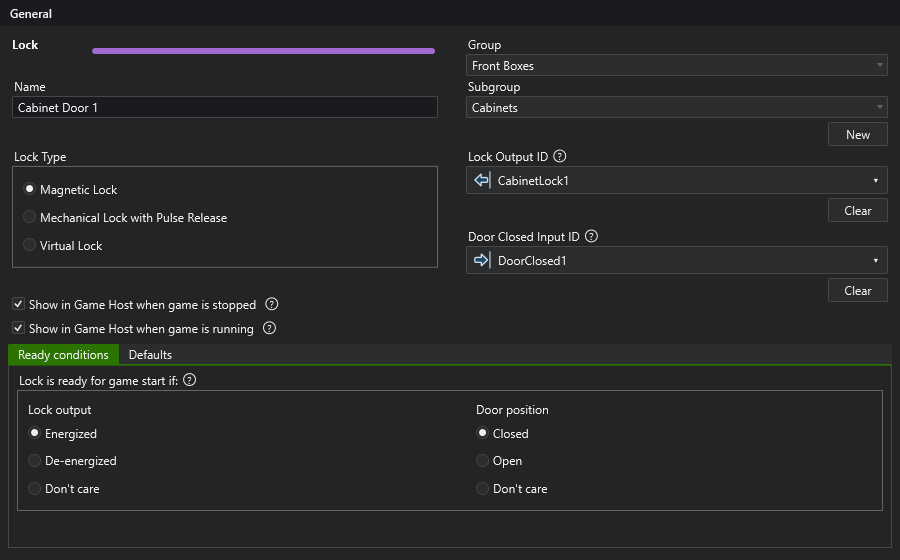
Ready conditions help the game host check the room before starting. The example below applies to a Mechanical Lock: select Locked, Unlocked or Don’t care as required by the room. Magnetic and Virtual Locks instead have the separate output and optional door-position conditions described above.

Default settings for the lock can be defined for both the game start and reset phases. Typically, during a reset, all locks are released. For the game start, it’s common to leave the lock unchanged since the game host manually locks it during room preparation. The game start process is initiated by the game host once the room is ready for the next players. Automatic locking is only selected in situations where a door or cabinet is designed to lock itself.

Switch control
A Switch is toggled on or off. Choose Output for a physical switch with an assigned Output, or Virtual to run on/off effect sequences without a physical Output.
| Type | I/O and feedback | Ready | Defaults |
|---|---|---|---|
| Output | The assigned Output controls the device. Its commanded state is not independent physical feedback. | On, Off or Don’t care. | On, Off or Unchanged, separately for game start and reset. |
| Virtual | No Output required. The logical state runs the configured on/off events. | On, Off or Don’t care. | On, Off or Unchanged, separately for game start and reset. |
The following Ready and Defaults examples remain applicable. For example, choose Off when the switch must be off before starting, or Don’t care when preparation does not depend on its state.

Refer to the image below for the available default settings for the switch.

Operation control
The Operation control is designed to initiate effect sequences independently from Puzzle, Action, or Experience tasks. It serves three purposes and can be activated in the following ways:
- By the game host, either before the game begins or during gameplay.
- Based on room-specific timing.
- From another effect sequence.
See below settings for the Operation control
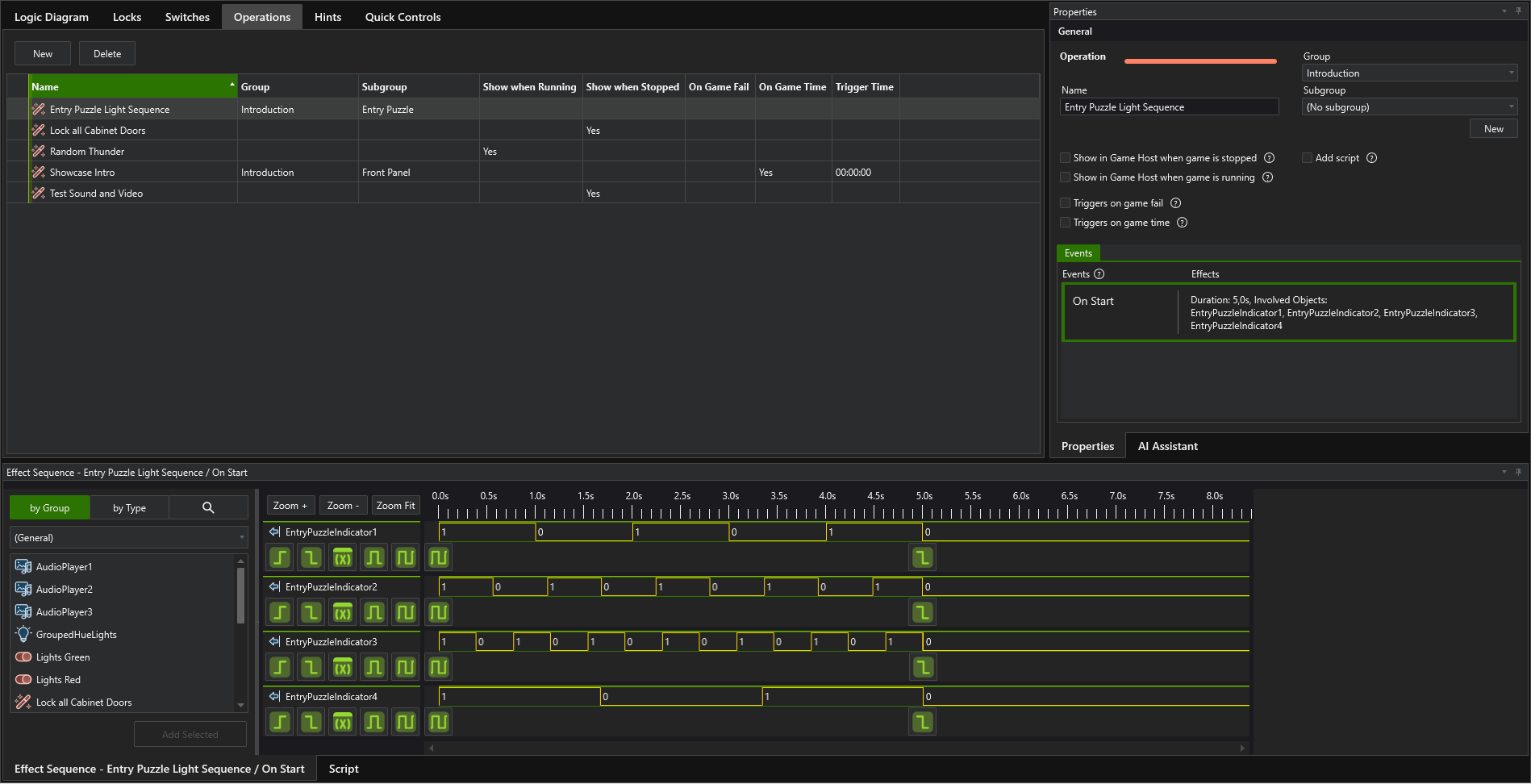
To make operations available to the game host, enable the appropriate checkboxes to show them when the game is stopped, running, or both. For timed-based activation, the following options are available:
- Trigger on game fail: Activates the operation when the maximum game time has elapsed.
- Trigger on game time: When selected, allows you to specify an exact game time at which the operation will activate.
The effect sequence to be launched is linked to the On Start event.
In a script, use launchOperation(name, startTimeSecs, repeatCount, repeatInterval) and cancelOperation(name, startTimeSecs). Operations use their configured names. See Using control functions for parameters and the Lock/Switch functions.