
Objects serve as the fundamental building blocks in the logic definition. The flow of the Puzzle Schema is driven by the state of objects, while tasks (such as puzzles, actions, and experiences) initiate Event Sequences that activate these objects. The logic definition is configured using the Realix Designer. This article describes the different types of objects and the properties that can be set for each type.
You can define all these objects without selecting any physical device initially. Devices with channels can be added later, and the objects can then be assigned to the channels, or vice versa. Additionally, you can easily reassign objects to different devices if you need to move a component electrically to another device.
All objects share a common property:
- Object ID: The Object ID format allows alphanumeric characters, as well as underscores (“_”) and hyphens (“-“). Spaces are not permitted.
The following sections describe all the available object types.
Inputs
Inputs are digital and can be either 0 (inactive) or 1 (active). The following properties can be set:
- Invert: This setting determines how the device channel should be interpreted. Since the device only handles an electrical signal, a signal set to GND (ground) can indicate that it is active, meaning 0 would be active. On a logical level, we want 1 to represent active. In this case, choose to invert the signal.
- Device Channel: You can assign the input to a specific device channel.
Outputs
Outputs are digital and can be either 0 (inactive) or 1 (active). The following properties can be set:
- Invert: This setting determines how the device should generate its output signal. If the component driven by this output deactivates when powered, choose to invert the signal. This ensures that the component behaves correctly, with a logical 1 representing activation and a logical 0 representing deactivation.
- Device Channel: You can assign the output to a specific device channel.
Lights
Light objects represent the lighting fixtures in the escape room, ranging from single-color lights to RGBCCT lights. The most important devices that support light channels are DMX and Philips HUE. When creating a light object, you need to choose its type, and later connect it to a channel of the same type.
In the Designer, if you already have or know the physical device, it is recommended to first add the device along with its channels, and then create light objects based on those channels. For Philips Hue, this process can even be automated by importing from the HUE bridge. The following properties can be set:
- Light Type: The type of light selected when creating the light object. This cannot be changed afterward.
- Device Channel: Assign the light to a specific device channel, typically a DMX or Philips HUE channel.
- Reset Value: The color (if applicable) and intensity value that will be applied to the light when the game is reset. This setting is optional.
- Start Value: The color (if applicable) and intensity value that will be applied to the light when the game starts. This setting is optional.
Note that while the ERC supports HUE Scenes, this functionality is achieved using the scene controller object and is not part of the light objects. For the scene controller see section Media, Philips Hue and Custom.
Actuators
An actuator includes components such as motors, servos, or moving heads. Unlike digital outputs, which are binary, actuators are controlled by values like position or speed. These can be found in DMX devices and the Control Pod, as well as in external services. The adjustable properties include:
- Actuator Type: The type of component selected when creating the object, which cannot be changed afterward. Types include:
- Proportion: The value for this component ranges from 0 to 100%. The final resulting value depends on the channel size (8 or 16-bit).
- Exact Value: The value for this component is an absolute integer. The maximum value depends on the channel size (8 or 16-bit).
- Device Channel: Assign the actuator to a specific device channel.
RFID Readers
RFID reader objects provide information on whether an object with an RFID tag or card is on a reader and which serial number is read from the tag or card. An RFID serial number looks like 23:5F:27:A5. This is not a very clear value to work with in your puzzle. Therefore, in the ERC, you can set up a library with meaningful names and their corresponding serial numbers. In a puzzle, you can test against the meaningful name instead of the code. This has the added advantage that if you need to replace a damaged card or tag, you only need to update the library, not the puzzle logic itself.
The device that supports the RFID reader is the Realix RFID Pod having one RFID channel. Besides the ID, there is only one other property that can be set:
- Device Channel: Assign the RFID to a specific device channel of the RFID Pod.
Sensors
Sensors objects are objects that represent an analog value red from an analog channel and adds logic to it to offer a value interpretation. Analog channels can be found on the Realix IO Pod.
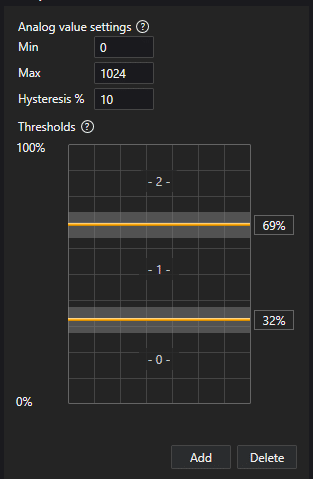
An analog channel delivers a value within a specified range, defined by a minimum and maximum value set in the sensor definition. To translate the analog input value into a meaningful result, the user must define thresholds. For example, defining a single threshold at 50% means that when the analog value is below 50% of the maximum, the resulting value is 0, and when it is above 50%, the resulting value is 1. If two thresholds are defined, the input value can result in three possible values: 0, 1, and 2. To prevent rapid fluctuations between two result values, you can specify a hysteresis around the thresholds. Below is an overview of the relevant properties:
- Min Value: Minimum absolute analog value, depending on the selected channel. For Realix IO Pod channels, this is 0.
- Max Value: Maximum absolute analog value, depending on the selected channel. For Realix IO Pod channels, this is 1024.
- Hysteresis: Value from 0% to 100% representing the hysteresis around the thresholds. A starting value of 10% is recommended.
- List of Thresholds: Specifies the thresholds, each ranging from 0% to 100%.
See below the dialog in the Designer that illustrates how thresholds are defined. The gray area around threshold is the hysteresis.
Media, Philips HUE and Custom
The objects in this category are high level objects which are controlled externally.
- Media: Media objects are used to play or display media on a device such as the Media Player or an External Service once connected to a channel. The following media types are available:
- Video Player: This object allows you to play a video file over a video channel. When a new video is launched, it replaces the currently playing video on this player.
- Audio Player: This object allows you to play an audio file over an audio channel. When a new audio fragment is launched, it replaces the currently playing audio on this player. To play multiple audio files simultaneously, two or more audio players can be used, which can still reside within one player.
- Image Viewer: This object allows you to display an image over an image channel.
- Text Viewer: This object allows you to display text over a text channel.
- Philips HUE: There is one object type available for Philips HUE:
- HUE Scene Controller: This object can be compared to a video or audio channel but instead a HUE scene is launched.
- Custom: This object type is meant only for an External Service. External Services are devices that can receive Media commands but more importantly, receive and handle custom commands. There can be multiple custom external channels.
- Custom: Defines a user-defined object which then should be created as a channel within an External Service. Parameters to send are free to define.